

Present your entire screen in Google Meet, and mark the private window as excluded from capture first. Viewers get an opaque privacy screen where that window is, while it stays fully visible and usable in front of you. Meet has no setting for this — it is done by the app that owns the window, using a Windows capture flag, before Meet receives any pixels.
Hushglass, a Windows app that protects a chosen window from screen-share viewers only, does exactly this. Below is the whole procedure, what the Chrome sharing bar gives away, and the one place you should not check the result.
First, which of Meet’s three modes you are using
Meet runs in a browser, so its share picker offers three things, and they behave very differently. This decides everything else on the page.
- Your entire screen — everything on that display is captured as one image. A protected window can be excluded from it. This is the mode that needs this page.
- A window — Meet captures that one window’s own pixels. Nothing else is captured, so other windows are already safe. But if you present the private window itself, Windows hands it straight to the browser and nothing can get in between.
- A tab — Chrome captures the rendered content of one tab only. Nothing outside it exists in the stream. Safest, and the most restrictive.
Most people pick entire screen, because the conversation moves and re-presenting mid-sentence is worse than the risk. That is the case this solves.
Set it up, step by step
- Install Hushglass. The quickest route is the Microsoft Store: free, signed by Microsoft, and neither your browser nor Windows warns you on the way in. Or download the installer and run it — it installs for your user account only, so there is no administrator prompt, but your browser and Windows may warn about the file first, because it is not code signed yet. The download page shows the exact warnings and publishes the SHA-256.
- Open the window you want private, before the next step. The window list does not refresh on its own.
- Open Hushglass. Windows are listed under
ACTIVE WINDOWSandSTATUS, every row starting asNot Protected. If yours is missing, click Refresh list. - Click the row, then click Protect. The
STATUScell becomes a greenProtectedchip. Nothing to save or apply — the flag is on the window immediately. - In Meet, click Present now in the bottom toolbar and choose Your entire screen, then pick the display and confirm in your browser’s own dialog.
- Leave Hushglass running. The tray by the clock is fine; protection continues from there.
Ctrl+Shift+Q protects or unprotects whichever window you are working in, from any application. That
is the one to remember, because the moment you need it usually arrives without warning.
About that sharing bar
When you present your entire screen, Chrome puts a bar at the bottom of your screen reading “meet.google.com is sharing your screen” with Stop sharing and Hide.
That bar is drawn on your screen, so it is captured along with everything else — viewers see it too. It gives nothing away beyond the fact that you are sharing, which everyone already knows. Hide tucks it out of the way if it overlaps something you need.
Worth knowing because people sometimes assume anything browser-drawn is invisible to viewers. It is not. Only the window you protected is.
What viewers see
An opaque privacy screen where the window is, carrying a small line naming the tool. Not a blur — a blur is still your content, and codecs at meeting bitrates do unpredictable things to blurred text. There is nothing in it to read at any size, on any zoom, or on a recording watched afterwards.
You keep seeing the real window, in its normal place, fully usable.
Do not check this in Meet’s own preview
The single most common way to get a false result is to look at your own screen.
Meet shows you a preview of what you are presenting. It is generated on your machine, which is the one place the answer is guaranteed to look right whether or not it is. The same goes for taking a screenshot of your own desktop.
Check on a second device. Join the meeting from your phone, present your entire screen, and look at the phone. One minute, once, with nothing sensitive on screen — and afterwards you are working from evidence instead of assumption.
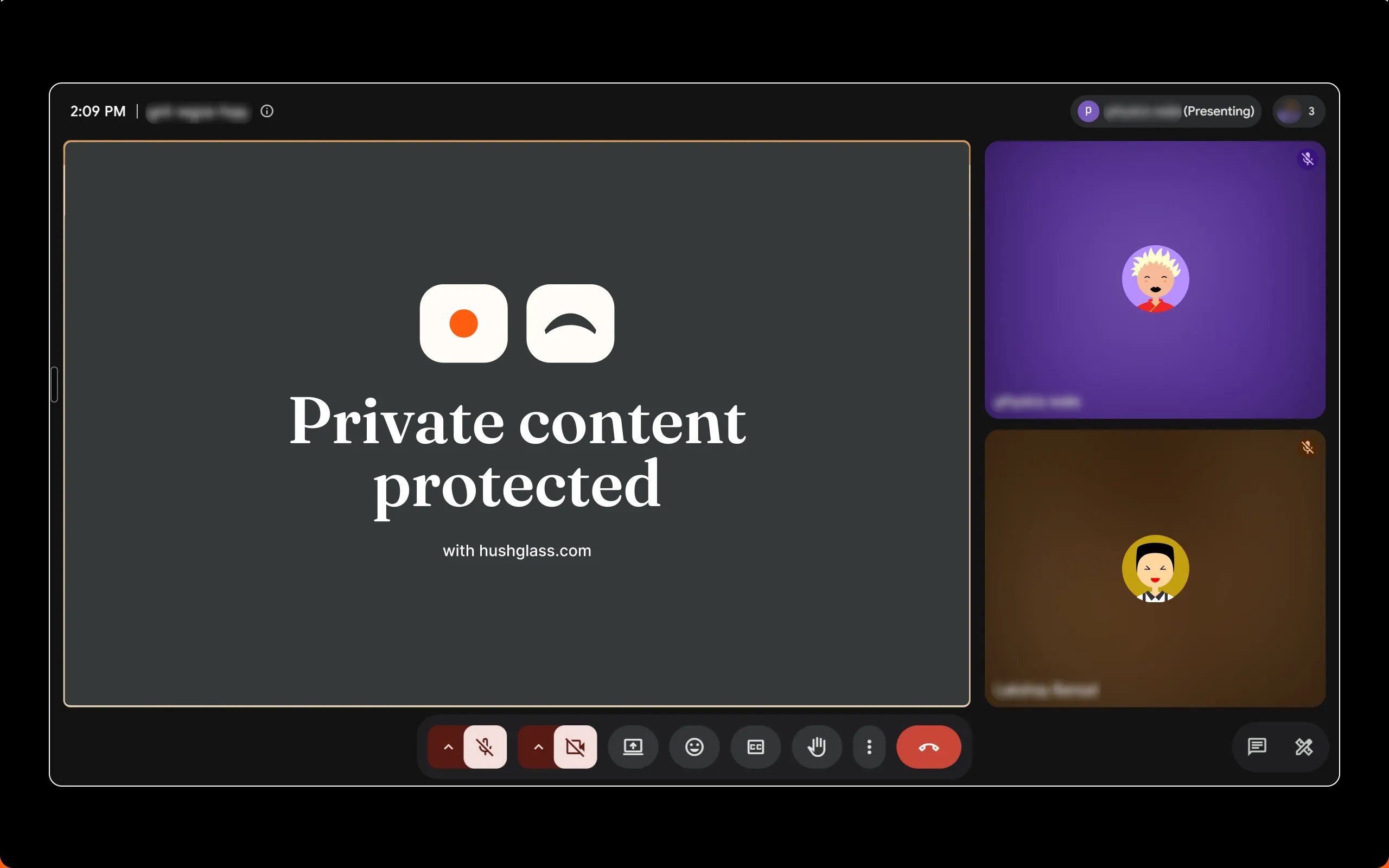
That is the viewer’s side of exactly that test, on a real Meet call.
What this does not cover
- Task View, Alt-Tab and taskbar previews still show an open window’s content. Windows draws those thumbnails itself, and while a protected window is open on your screen they show what is really in it. A minimised protected window shows its app icon there instead. Do not open Task View while presenting.
- Notification banners are their own windows and are not part of the window you protected. Turn on Do not disturb before the call.
- Hardware capture sees everything — a capture card or a phone camera reads the screen itself.
- Whole windows only. There is no way to protect one region inside a window.
Tested, and on what
Viewer-side pass on 2026-08-16, presenting an entire screen in Google Meet with a second device joined as the viewer. Zoom’s default capture mode, Microsoft Teams’ desktop client, OBS Studio, ShareX, Clipchamp and Windows’ own capture were tested the same day and behave identically, because all of them receive the same screen capture from Windows.
Still untested and worth naming: Teams inside a browser tab, and Zoom’s legacy capture mode.
If it is not working
- Viewers can still read the window — you almost certainly presented that window, or its tab, rather than your entire screen.
- The window is not listed — click Refresh list; anything opened after Hushglass started is missing until you do.
- The row still says
Not Protected— its tick box is empty. Click the row so it is ticked, then click Protect. - A second window would not protect — the free tier holds one at a time.
- Viewers can see Hushglass itself — turn on Keep Hushglass invisible to viewers in settings.
If none of those, suspect the capture path: a Windows build older than 10 version 2004 has no such flag at all.
Frequently asked questions
If I present a single Chrome tab, do I still need this?
No. Presenting a tab captures only that tab's rendered content, so nothing else on your screen is in the stream at all — not other tabs, not other windows, not your desktop. It is the safest of the three modes and it is also the most limiting, because the moment you need to show something outside that tab you have to stop and re-present.
Will people see the "meet.google.com is sharing your screen" bar?
Yes, when you present your entire screen. That bar is drawn on your screen by the browser, so it is part of what gets captured, exactly like any other window. It is harmless — it says only that you are sharing — and Chrome's Hide button tucks it away if it is in your way.
Can I trust Meet's own preview of what I am sharing?
Not for this. The presenting machine is the one place the result is guaranteed to look correct whether or not it is, because you see the real window and the self-preview is generated on the same computer. Check on a second device that has joined the call.
Does it work with Meet in Edge, Brave or another Chromium browser?
The protection does, because it is applied by Windows before any browser receives the pixels. The share picker's wording varies between browsers, and Firefox and Safari present a different dialog again, but the entire-screen versus window distinction exists in all of them and is the part that matters.
Does this work on a Chromebook or on Meet for Android?
No. This relies on a Windows capture flag, so it applies only when you are presenting from a Windows 10 version 2004 or later PC. What the other people in the call are using makes no difference.