

The short version: protect the specific window, share your entire screen as normal, and viewers get an opaque privacy screen where that window is while it stays visible and usable to you. Nothing gets closed, nothing gets moved, and you do not have to remember which desktop something is on.
The rest of this page is why the usual approaches cost you something, the exact setup, and a check worth running before a call rather than during one.
What is actually on screen during a client call
The things people want off a shared screen are rarely secrets. They are ordinary and they are awkward:
- A banking or payroll tab left open from the morning.
- Message threads — a work chat with a colleague’s name and an unread preview, or a personal one.
- Research you would rather not explain, including what you were reading about the client, or about a competitor, or about a job.
- Another client’s work, which is the one with a contractual dimension rather than just an embarrassing one.
- Your own notes for the call, including the price you decided not to open with.
The last two are why this is a business problem and not a tidiness problem. Showing client A’s material to client B is a confidentiality breach that happened to arrive through a screen share.
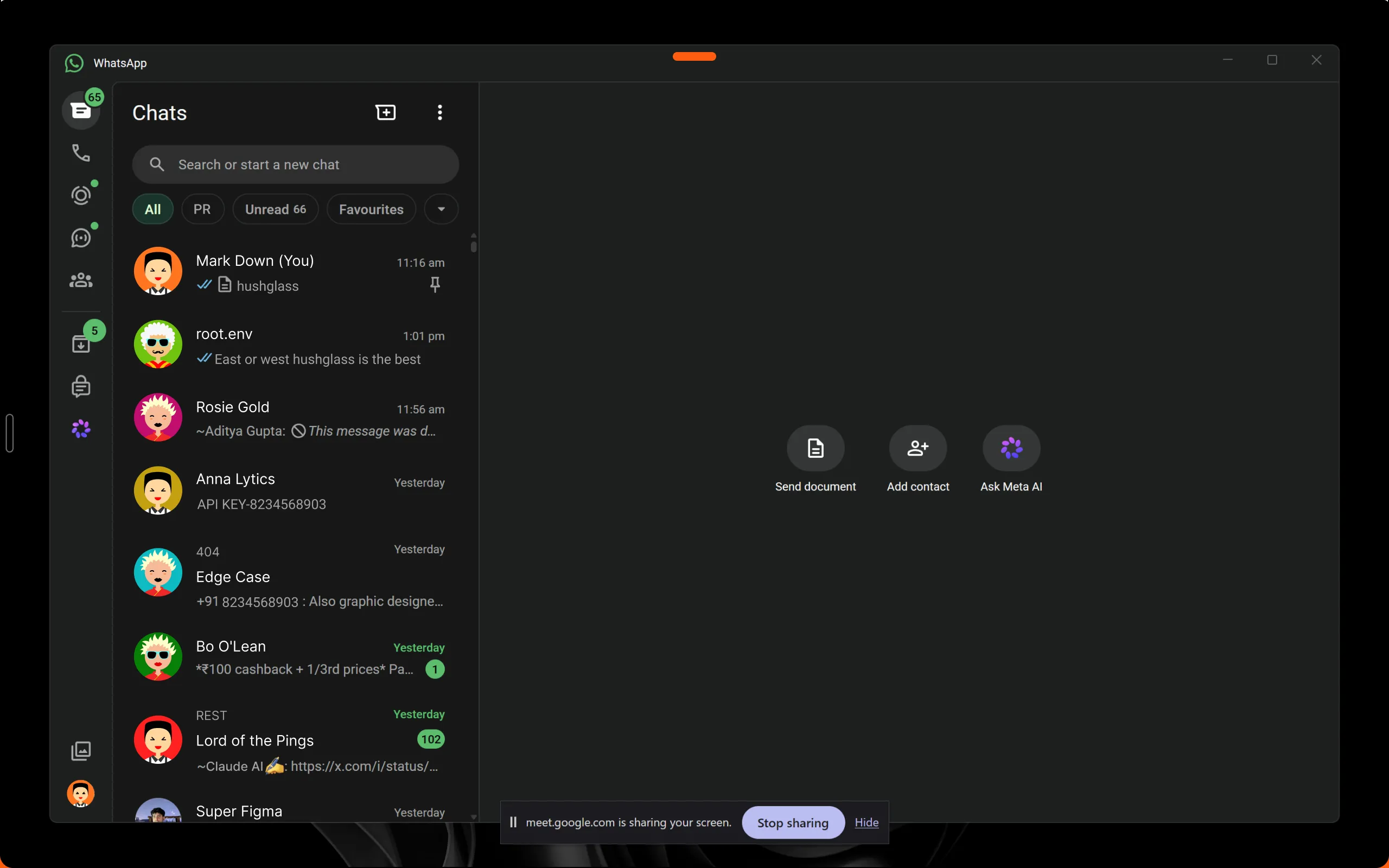
That is an ordinary working screen during a call: a chat window open on the left, and the browser’s own bar at the bottom confirming the screen is being shared. Everything in that window went to everyone in the meeting.
Why the usual fixes cost you something
Closing everything beforehand. Works, and then you cannot check the thing you closed. It also assumes the call was scheduled — a lot of screen shares start with “can you just show me”.
Sharing a single window. Genuinely safe: nothing else is captured. It fails the moment the conversation moves. You share the deck, they ask about the spreadsheet, and now you are stopping the share, restarting it on a different window, and talking over your own fumbling.
A second monitor. Better, and it holds right up until you drag something to the wrong screen, or join from the laptop alone.
A separate virtual desktop. Windows has these and they are underused. But moving a window to another desktop hides it from you as well, which is fine for things you want gone and useless for things you need to keep an eye on.
Alt-tabbing mid-call. Everyone sees. It also reads as if something is being hidden, which is worse than whatever was on screen.
The setup, exactly
Hushglass, a Windows app that protects a chosen window from screen-share viewers only, marks the window as excluded from capture at the operating-system level. That is the same mechanism whether the call is Zoom, Google Meet or Microsoft Teams — all three receive the same screen capture from Windows, so none of them has to cooperate.
Do this once, before a call rather than during one:
- Download Hushglass and run the installer. It installs for your user account only, so there is no administrator prompt.
- Open the window you want private — and open it before the next step, because the window list does not refresh on its own.
- Open Hushglass and find that window in the
ACTIVE WINDOWSlist. Click Refresh list if it is missing. - Click the row, then click Protect. The
STATUScell becomes a greenProtectedchip. - In your meeting app, share your entire screen rather than a single window. This is the part that decides whether any of it works, and it is covered below.
Then learn one shortcut: Ctrl+Shift+Q. It protects or unprotects whatever window you are
currently working in, from any application, without switching to Hushglass. This is the one that
matters in practice, because the moment you need it is a moment you did not plan for — the client
asks to see something, and the thing you would rather they did not read is already on screen.
If you want it ready without thinking about it, Hushglass can start with Windows and sit in the tray by the clock, so it is running before your first call of the day.
The rules you still have to know
This is not a blanket privacy setting, and anyone selling it as one is overselling it.
- Share your entire screen. If you share the private window itself as a single window, Windows hands that window straight to the meeting app and nothing can intervene. Sharing a different single window is safe, because nothing else is captured at all.
- Do not open Task View or Alt-Tab while presenting. Windows draws those thumbnails, and a protected window that is open on your screen shows its real content there. Only a minimised one is reduced to its app icon.
- Notifications are separate windows. Turn on Focus assist. Protecting a chat app does not protect a banner that chat app raises.
- One window at a time on the free tier. If you routinely need two — the bank tab and the other client’s document — that is what Pro is for.
- A camera pointed at your monitor sees everything. Software operates above the glass.
The check to run before you need it
Do this once, with nothing sensitive on screen. It is the only step that converts an assumption into knowledge, and it takes about a minute.
- Start a meeting on your own, with nobody else in it.
- Join the same meeting from your phone.
- Protect a window on your PC, then share your entire screen.
- Look at the phone. Not at the meeting app’s self-preview on your PC, and not at a screenshot of your own desktop — those are the two places the result is guaranteed to look right whether or not it is.
You should see the privacy screen where the window is. Once you have seen that on a second device, every call afterwards is the same procedure and you are working from evidence rather than hope.
What to do when it matters mid-call
The realistic failure is not technical. It is that the client asks to see something and you have half a second to decide.
- Press
Ctrl+Shift+Qwith the private window focused, then switch to what you meant to show. - If asked what the covered area is, say what it is: another client’s work, or something personal. A visible privacy screen is far easier to explain than a window somebody glimpsed, and the answer is one most people find entirely reasonable.
- Afterwards, unprotect it the same way if you want the window back in shares.
Download Hushglass — free for one protected window, which is enough to run the whole check above. Windows 10 version 2004 or later.
Frequently asked questions
Will the client be able to tell that I am hiding something?
Yes, and that is deliberate. Viewers see an opaque privacy screen carrying a small line naming the tool, not a blank gap or a frozen image pretending nothing is there. Hiding the fact that something is hidden would make this a deception tool rather than a privacy one. In practice "that is my other client's work" is a normal thing to say, and a visible privacy screen is easier to explain than a window someone glimpsed.
What if I forget to turn it on and the call has already started?
Press Ctrl+Shift+Q. It protects or unprotects whichever window you are working in, from any app, without switching to Hushglass — so you do not have to go and find a window while people are watching.
I need two windows private at once. Is that possible?
Not on the free tier, which protects one window at a time. Pro removes the limit and is $39 once or $19 a year. If you only ever need one, the free tier is not a trial and does not expire.
Does this help if the client is recording the call?
Yes. A recording is built from the same capture the viewers receive, so it contains the privacy screen rather than your window.
Is protecting a window from a client call a problem contractually?
We are not in a position to advise on your contracts, and this is worth a thought rather than an assumption. The ordinary case — keeping another client's work, your own banking, or a personal message thread off a shared screen — is confidentiality practice rather than concealment. If you are under an obligation to show particular material, a privacy screen does not change that obligation.
Does it work in a webinar, or when someone else is sharing?
Protection applies to what your own machine puts into a screen capture, so it covers any call, webinar or recording in which you are the one sharing. When somebody else is sharing, nothing on your screen is being captured in the first place.