

You did the responsible thing. Streamer Mode is on in Discord, notifications are off, and you have not seen a pop-up on stream in months.
Then you alt-tab to Discord to check a message, and for four seconds your direct message list is on the stream. Contact names. The first line of every conversation. Whoever messaged you last, and about what.
Streamer Mode was working the whole time. It just never had anything to do with that.
Streamer Mode hides fields, not windows
Discord’s Streamer Mode does three useful things, and it is worth having on. It hides personal fields inside the client — your email address, your connected accounts, invite links you generate. It suppresses Discord’s notifications. And it can turn itself on automatically when OBS launches, so you cannot forget it.
What it does not do is hide the Discord window. The server list keeps rendering. Your DMs keep rendering. If that window is on a monitor you are capturing, its contents are on the stream, and no setting inside Discord changes that. People have asked for the missing half directly: Discord’s support community carries an open request titled Hide DMs When Streaming on Discord.
The same shape applies to everything else on your desktop. A desktop email client shows subject lines and sender names. WhatsApp Desktop shows the conversation list. A browser shows your bookmarks bar, your open tabs, and an autofill dropdown the moment you click a form field. None of these have a streamer mode at all.
Which capture mode you picked decides what can leak
This is the part that determines whether any of it matters to you, and most guides skip it.
OBS has three ways to get your screen into a scene, and they are not variations on one thing. They capture from completely different places.
Game Capture hooks a single game and pulls frames from it. Nothing else on your machine is in that source. Alt-tab to Discord and the stream keeps showing the game.
Window Capture takes one window. Same story: the rest of your desktop is not in the source.
Display Capture takes an entire monitor. Everything on it, continuously, including whatever you switch to. It is the mode people reach for when they do not want to build a scene per application, and it is the mode behind most “just show my screen” setups — tutorials, coding streams, creative work, variety, anything where you move between applications.
So the honest version is: if your scene is Game Capture or Window Capture, your desktop is already private and you do not need a tool for this. If it is Display Capture, the stream shows what you see, and that is the only OBS mode where a private window can appear.
What we tested, and the date
On 2026-08-16 we ran a viewer-side capture pass against a release build and read the result from a second device rather than from the machine doing the capturing. OBS Studio Display Capture was in that pass and a protected window did not reach the viewer. That route matters beyond OBS, because it is the one that exercises DXGI desktop duplication — the lowest-level of the three Windows capture technologies we tested. Clipchamp was in the same pass.
That is the whole of what we have measured for streaming, and the useful coincidence is that the one OBS mode capable of leaking a private window is the one with a dated test behind it.
What protection looks like from both sides — the presenter’s screen photographed directly, then the same desktop as a capture of that display receives it:
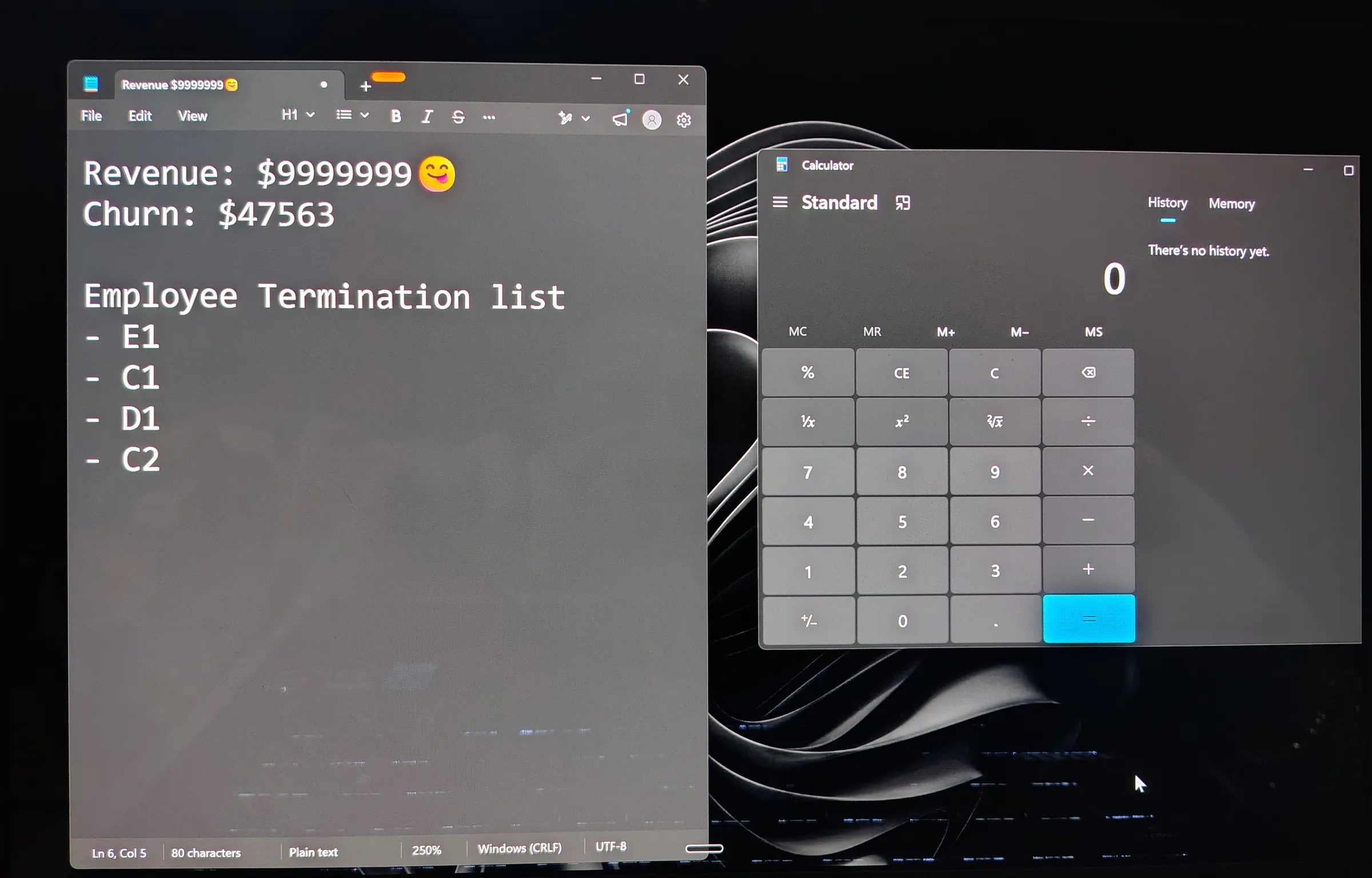
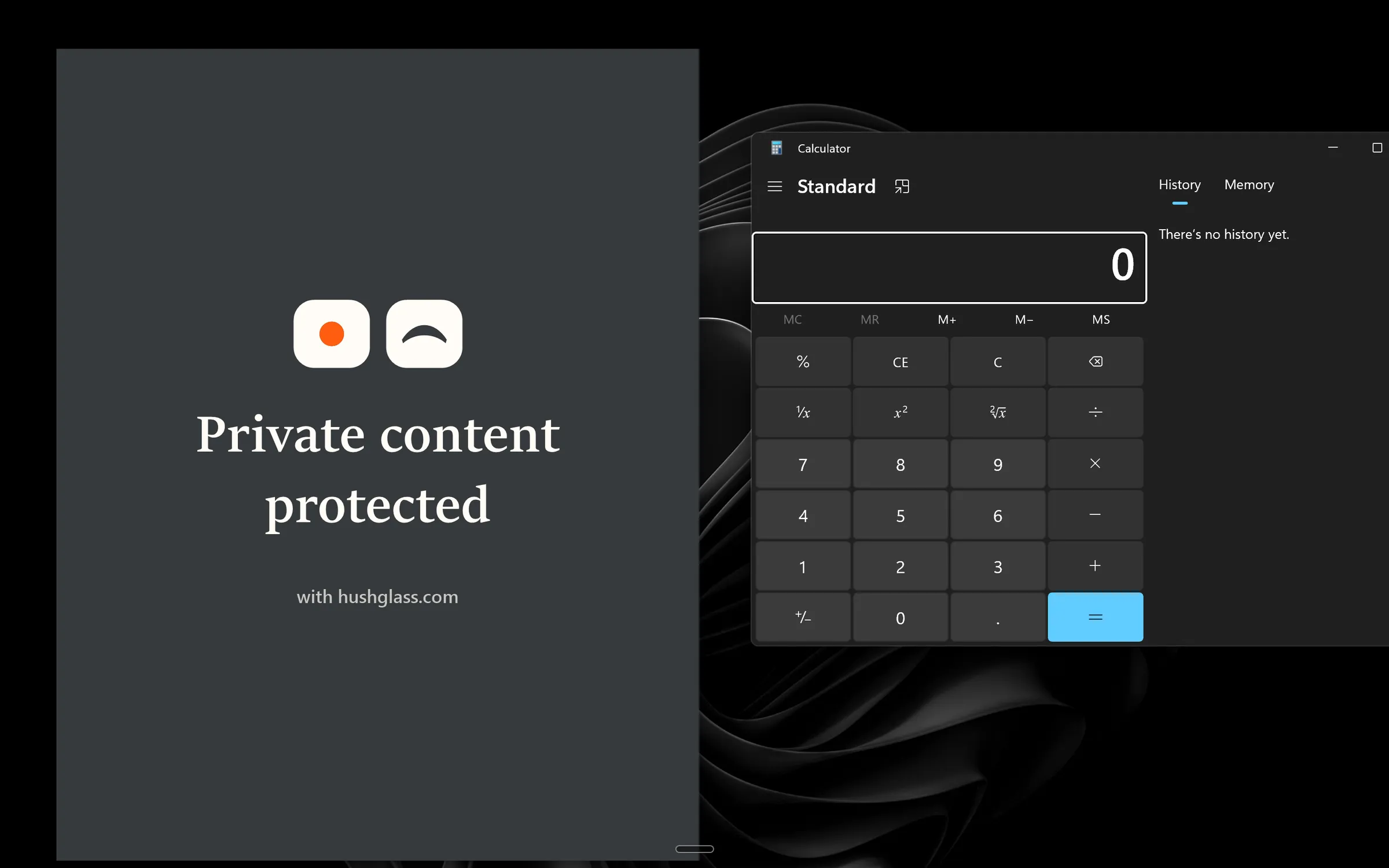
Two things about that pair, because being loose here would undo the point of the section. These frames are not from an OBS capture — they are a general demonstration of what protection does, and the calculator is the control that shows an unprotected window coming through untouched. And the first is a photograph rather than a screenshot on purpose: a screenshot taken on the presenter’s own machine runs through the same capture path as everything else, so it would show the panel too. Pointing a camera at the glass is the only way to record what the person sitting there sees.
What we have not tested, named rather than skipped
None of the following were in that pass. They are separate capture implementations, and there is no sound reason to assume one behaves like another:
- NVIDIA ShadowPlay and Instant Replay. Untested, and the one we would check first if we streamed. It captures on a different path from OBS, and it writes clips after the fact — so a failure here does not show up live where you would notice it, it shows up in a saved file you are about to upload.
- Discord Go Live and Discord screen share. Untested, and it is how a lot of smaller streams actually happen.
- Streamlabs Desktop, XSplit, Twitch Studio, and the Windows Game Bar (Win+G). All untested.
If you use any of those, treat them as unknown. Check with a second device and a throwaway recording before you trust them with anything that matters — which is the same advice we would give about any capture tool nobody has measured, ours included.
The things no window tool reaches
Hiding a window is not the whole problem, and a page that implies otherwise is setting you up. Four leaks sit outside what any application can protect:
- Notification banners are separate windows owned by Windows, not part of the application that raised them. Streamer Mode covers Discord’s. It does not cover your email client’s, your calendar’s, or a delivery app deciding now is the moment.
- Task View and Alt-Tab draw live thumbnails of your windows, and Windows draws them itself. Open Task View mid-stream and a protected window that is open on your screen can appear in the switcher with its contents. A minimised one shows its app icon there instead.
- Anything you physically point a camera at is captured by the camera. Obvious, and it is still how a phone number reached a live audience more than once.
- The taskbar. Hushglass does not remove a protected window from the taskbar or from Alt-Tab. The window stays listed; what it shows to a capture is what changes, and while it is minimised its taskbar preview shows only its icon.
We wrote these up in detail in what still shows after you hide a window, and the notification half in turning off notifications while sharing.
The fixes, cheapest first
A second monitor solves most of this for free if you already have one. Capture display one, keep Discord and your email on display two, and they are simply never in the source. It stops working the moment you stream from a laptop alone, and it does not help with Task View, which spans displays.
Per-application sources — Game Capture or Window Capture instead of Display Capture — give you the same guarantee by construction. The cost is scene management: every new application you want on stream is a new source and a new switch.
Do not disturb stops the standard Windows notification banners, which is the great majority of them. Applications that draw their own custom pop-ups are unaffected.
A window-protection tool is what is left if you want one display, no scene juggling, and a private application open and usable while you stream. Hushglass is ours: a Windows app that protects a chosen window from screen-share viewers only. You pick a window, the protection goes on, and you keep reading and typing in it normally while a capture of that display sees an opaque panel reading “Private content protected” where the window is.
Two things to be clear about before you try it. Viewers do not see the window vanish — they see that panel, a marked rectangle your chat can also see, which is honest but is not invisibility. And the free tier protects one window; if you want Discord and a browser and your email covered at once, that is the paid tier, and there is no point pretending otherwise.
It runs on Windows 10 version 2004 or later. The free tier is the whole protection mechanism with a one-window limit, so you can confirm it works against your own capture setup, on your own machine, before deciding whether it is worth anything to you.
Frequently asked questions
Does Discord Streamer Mode hide the Discord window itself?
No. It hides fields inside Discord — your email, your invite links, your connected accounts — and it suppresses notifications. The window keeps drawing your server list, your direct messages and whoever last messaged you. If that window is on a display you are capturing, it is on the stream, Streamer Mode or not. Discord's own support community carries an open request titled "Hide DMs When Streaming on Discord", which is the same gap described from the other side.
Which OBS capture mode am I actually using?
Look at the source in your scene. Game Capture hooks one game. Window Capture takes one window. Display Capture takes an entire monitor, everything on it, including whatever you alt-tab to. If your source is called Display Capture — or you only ever built one scene and it shows your whole screen — that is the one that can leak, and it is the reason this page exists.
If I use Game Capture, do I need any of this?
Probably not, and it is worth saying so plainly rather than selling you something. Game Capture hooks a single game and Window Capture takes a single window, so anything else on your desktop is already absent from the stream. The gap opens when you capture a whole display, because then the stream shows what you see.
Has this been tested against ShadowPlay, Streamlabs or Discord Go Live?
No, and none of them should be assumed to behave like OBS Display Capture. They are separate capture implementations, and an untested path is exactly where a surprise lives. Our published pass on 2026-08-16 covers OBS Studio Display Capture and Clipchamp. If you clip with ShadowPlay or go live through Discord, treat those as unknown and check for yourself before trusting anything on a real stream.
What do viewers see where the hidden window was?
An opaque panel reading "Private content protected", not a gap and not a blur. The window's rectangle is still there and still visibly covered. On a call that reads as deliberate. On a stream it is a marked area your chat can see, which some people want and some do not, so it is worth knowing before you build a scene around it.