
There is no switch in Windows for this. That is the first thing worth knowing, because most of an afternoon can go into looking for one.
Windows does have a capture-exclusion flag, but it is something an application asks for on its own behalf. There is no setting where you point at a window — someone else’s window, one you did not write — and tell Windows to keep it out of screen shares. So every answer below is a workaround of some kind, and they differ mostly in what they cost you.
Three methods. Two are free. Pick by what you actually need to do during the call.
1. Put it on a second monitor
Share display one, keep your private applications on display two. They are never captured because they are never on the captured display. Free if you already have the monitor, and it is the most robust method here — nothing to configure, nothing to switch on, nothing to forget.
Costs you: a monitor, and it stops existing the moment you join from a laptop alone. It also does nothing for Task View, which spans displays.
Where it breaks: the share picker. Every meeting app lists your displays as thumbnails about the size of a postage stamp, usually while people are already watching. Pick the wrong one and this method does not partly fail — it puts the entire screen you were protecting in front of everyone, at full size, until somebody tells you. There is no partial version of that mistake.
The thing to notice is where the protection actually lives. It is not on the window. It is on your memory of which display is which, at the moment you are least able to check.
2. Move it to another virtual desktop
Win+Ctrl+D makes a new desktop, Win+Ctrl+Left and Win+Ctrl+Right move between them, and you can drag a window across in Task View. Share the desktop you are presenting from, and the window on the other one is genuinely absent from the capture.
Costs you: access. The window is hidden from you as thoroughly as from everyone else.
Where it breaks: one keystroke. Win+Ctrl+Arrow sits next to a dozen shortcuts people press by reflex, and the desktop you land on becomes the shared view instantly. Checking the thing you hid is the same gesture as showing it to the room. Same failure shape as the monitor — total, immediate, and it lands squarely on the one thing you most wanted covered.
Use it when you want something out of the way for the duration and genuinely will not need it.
Both of these are placement. They keep the window somewhere the capture is not currently pointed, which holds exactly as long as that boundary holds — and the boundary is you, remembering correctly, on a call that has already started. They are real answers and plenty of people get through plenty of calls on them. They just have no margin: the day they fail, they fail completely.
3. Protect the window and keep using it
The gap the two above leave is specific: you are on one screen, and you need a private application open and readable while you present. Nothing built into Windows does that. Minimising, moving to another desktop and closing all take the window away from you as well, which is the same trade in three different costumes.
This is where a window-protection tool is the only thing left, and ours is one: Hushglass, a Windows app that protects a chosen window from screen-share viewers only. You pick a window, the protection goes on, and you keep reading and typing in it normally while viewers see an opaque panel reading “Private content protected” where the window is.
The difference from the two above is not convenience, it is where the protection is attached. This is a property of the window rather than a fact about where the window is sitting. Share the wrong display and a protected window is still protected. Drag it from one monitor to the other and it stays protected. Multi-monitor setups are supported on every tier, including the free one, so the mistake that ends methods 1 and 2 is not a mistake that ends this one.
That is worth being precise about rather than overselling: it protects the window you protected. It does not make a display safe. Anything else private sitting on that screen is an ordinary window and will be captured normally.
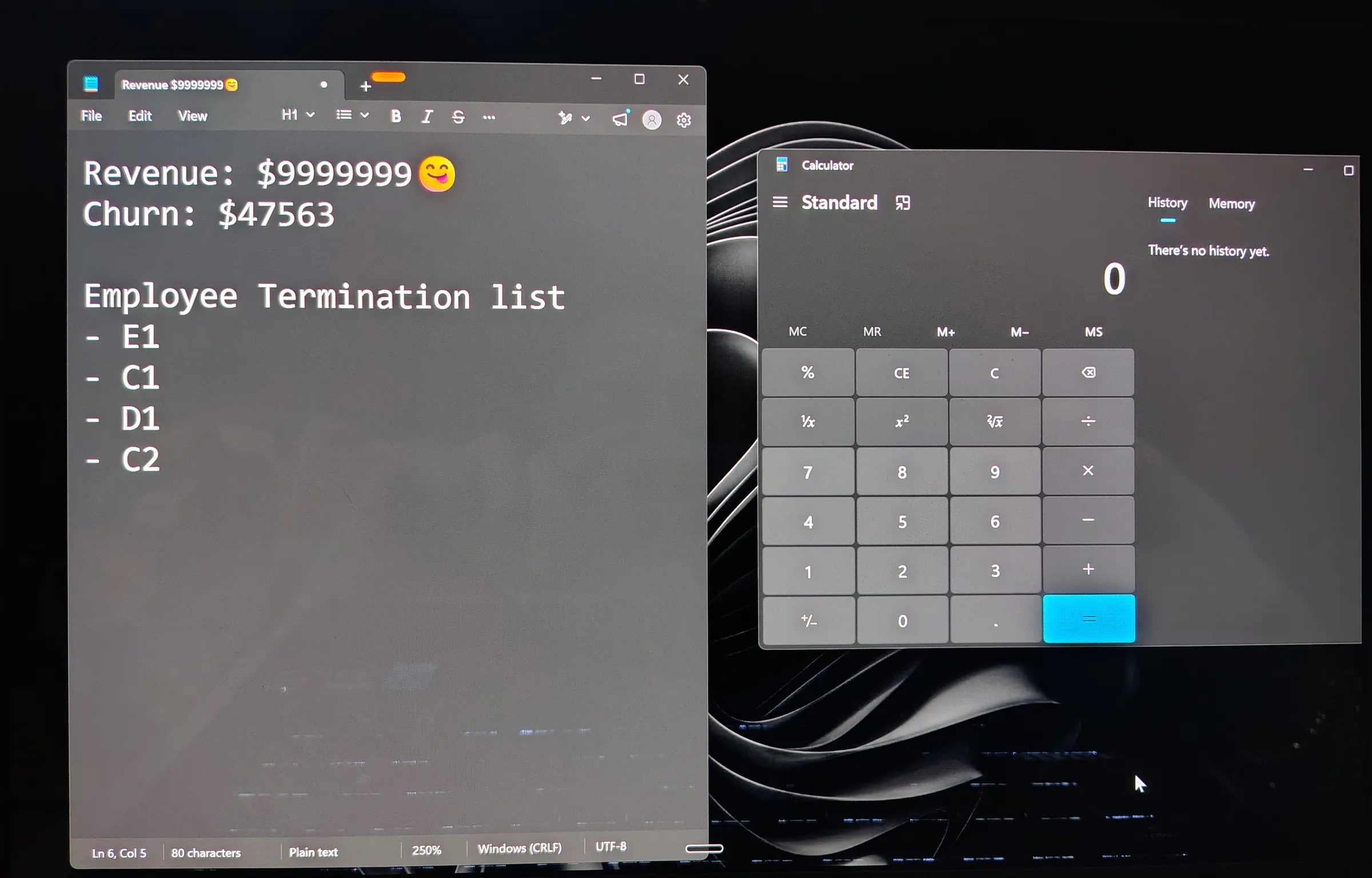
Here is the same moment from both sides. First, the presenter’s screen, with a document protected and a calculator left alone:
And the same desktop as a capture of that display receives it. The document is an opaque panel; the calculator, which was never protected, comes through untouched:
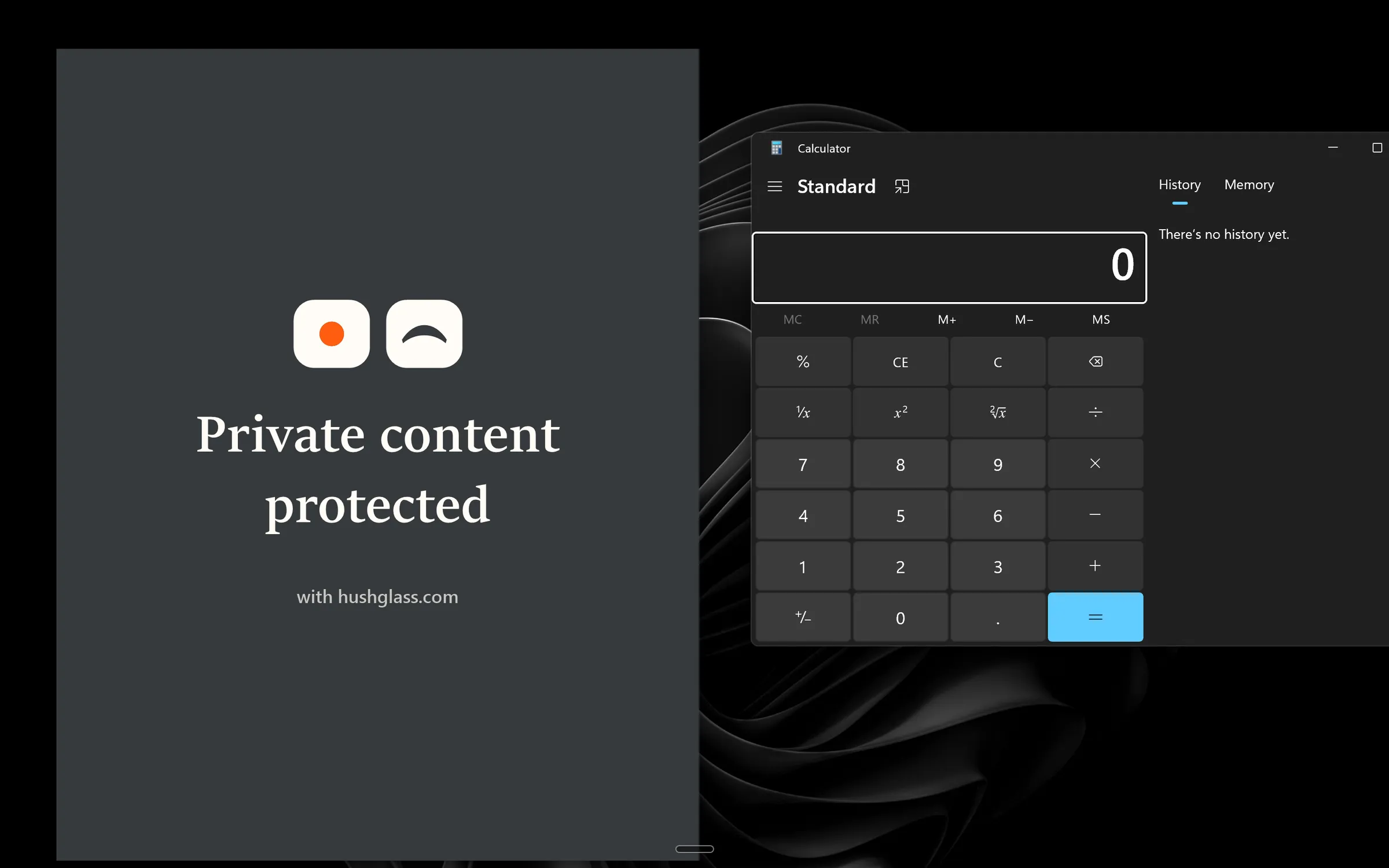
The first image is a photograph of the screen rather than a screenshot, and that is not laziness. A screenshot taken on the presenter’s own machine goes through the same capture path everything else does, so it would show the panel too. Pointing a camera at the glass is the only way to record what the person sitting there can actually see.
Three things to be straight about, because finding them out mid-call is worse than reading them here.
Viewers do not see the window disappear. They see that panel, so they can tell an area is covered even though they cannot see what is under it. If your requirement is that nobody knows anything is hidden, close the application instead.
It requires you to share your entire screen. That is how the protection works — it changes what a capture of the display sees — so it is a requirement rather than a preference.
And it does not remove the window from your taskbar or from Alt-Tab. What changes is what a capture sees of the window’s contents. While it is minimised, its previews there show only its app icon.
The free tier protects one window, which is enough to check it against your own setup, on your own machine, before deciding whether it is worth anything to you. Windows 10 version 2004 or later. Where it earns the paid tier is the case that catches people out: an application that opens further windows of its own mid-call — a chat app raising a call window, a mail client opening a message — which the free tier will not pick up automatically, and which is exactly the moment nobody is watching for.
Which one to pick
- You have two monitors, a fixed desk, and you present the same way every time — method 1 is free and it will usually hold. Know what it costs you on the day you misread the share picker.
- You want something out of the way and will not need to look at it — method 2.
- The private window has to stay usable, or you would rather not bet the outcome on picking the right thumbnail — method 3. It is the only one of the three where being wrong about what you shared does not expose the window anyway.
What none of these fix
Worth knowing before you rely on any of them, because a page that implies otherwise is setting you up:
- Task View and Alt-Tab draw live thumbnails, and Windows draws them itself. Open the switcher while presenting and window contents can appear there, including from a protected window that is open on your screen. A minimised protected window shows its app icon there instead.
- Anything a camera is pointed at is captured by the camera, whatever your screen is doing.
- The taskbar, as above. A window that is hidden from the capture is still listed.
We wrote those up properly in what still shows after you hide a window, which is the honest companion to this page and worth five minutes before your next call.
Frequently asked questions
Does moving a window to another virtual desktop hide it?
Yes, and that is also the problem. Win+Ctrl+D and Win+Ctrl+Arrow move a window to a desktop you are not sharing, so viewers never see it — but neither do you, until you switch back and take the whole shared view with you. It works when you want something out of the way. It does not work when you need to read it while you present.
Is there a built-in Windows setting that hides one window from a screen share?
No. Windows exposes a capture-exclusion flag to applications, so a program can ask to be left out of captures, but there is no user-facing switch that lets you point at someone else's window and exclude it. That gap is the entire reason third-party tools for this exist.
I only have a laptop. Which of these actually works for me?
The second-monitor answer is out, which removes the option most guides lead with. A virtual desktop still works, but it takes the window away from you as well as from viewers. If you need a private window open and readable on the one screen you are sharing, that leaves a protection tool or closing the application for the duration of the call.
If I hide a window, can people tell?
With a virtual desktop or a second monitor, no — a window that is not on the shared display simply is not there. With a protection tool the answer is different and worth knowing before you rely on it: viewers see an opaque panel where the window sits, so they can see that an area is covered, even though they cannot see what is under it. If your concern is that nobody should know anything is hidden, close the application instead.
What happens if I pick the wrong display in the share dialog?
With a second monitor or a virtual desktop, everything you were keeping off the call is now the call, at full size, until somebody tells you — those methods work by keeping the window somewhere the capture is not pointed, so being wrong about what you shared is the same as not having hidden it. A protected window is the exception: the protection is attached to the window rather than to the display, so it holds on whichever screen you end up sharing. It still only covers the window you protected, not everything else on that screen.
Does a protected window still show in the taskbar?
Yes. Hushglass changes what a capture sees of the window's contents; it does not remove the window from your taskbar or from Alt-Tab, and we would rather say so than let you find out during a call. If a viewer is reading your taskbar closely, a taskbar entry is a taskbar entry. What it does change there: while the window is minimised, its taskbar preview and its tile in Alt-Tab and Task View show only the app's icon.