

Search for a way to keep WhatsApp private on a shared screen and you will find a dozen browser extensions that blur it. WhatsApp Privacy Blur, Blur for WhatsApp Web, Privacy Blur for WhatsApp, WhatsApp Web Privacy Mode, blurrit, BlurWeb, and several more.
They all work, they are mostly free, and they all share one property that their listings do not lead with: a blur applied to a web page is applied to your copy of that page. You are looking at the same pixels everyone else is. Blur them, and you have blurred them for yourself.
This page is what that costs, when it does not matter, and what the alternative actually is.
What a browser extension can and cannot reach
An extension runs inside your browser and acts on the page. That gives it a real strength and two hard limits.
The strength: granularity. Because it is working with the page’s own elements, an extension can blur one contact’s name, the message previews in the sidebar, profile photos, or media thumbnails, while leaving the rest legible. Nothing that operates at the window level can do that. If what you want is “hide the previews but let me read the open chat”, an extension is genuinely the better tool.
Limit one: it only reaches WhatsApp Web, in that browser. The WhatsApp desktop app is a separate program the extension cannot see. Neither is anything else on your screen — your email, your notes, another client’s document.
Limit two: it blurs your view. This is the one people discover on the call. The page in front of you is the page being captured, so protection and legibility are the same dial. Turn it up and you cannot read your own messages; turn it down to reply and it is visible to everyone.
In practice that means toggling. Which is fine, until you are toggling while somebody watches.
What window protection does instead
A different mechanism produces a different trade-off. On Windows, a window can be marked so that screen capture skips it, and a substitute can be shown in the captured image instead.
Concretely, in Hushglass: an opaque cover carrying a “Private content protected” badge is placed over the window and is captured, so that is what viewers get. A live mirror of the real window sits on top of it, marked to be excluded from capture, so only you see it. Both are click-through, so the real app underneath still receives your typing and clicks.
The result is that the two sides genuinely diverge. You read and reply normally. Viewers get a labelled cover. No toggling, because there is nothing to trade off.
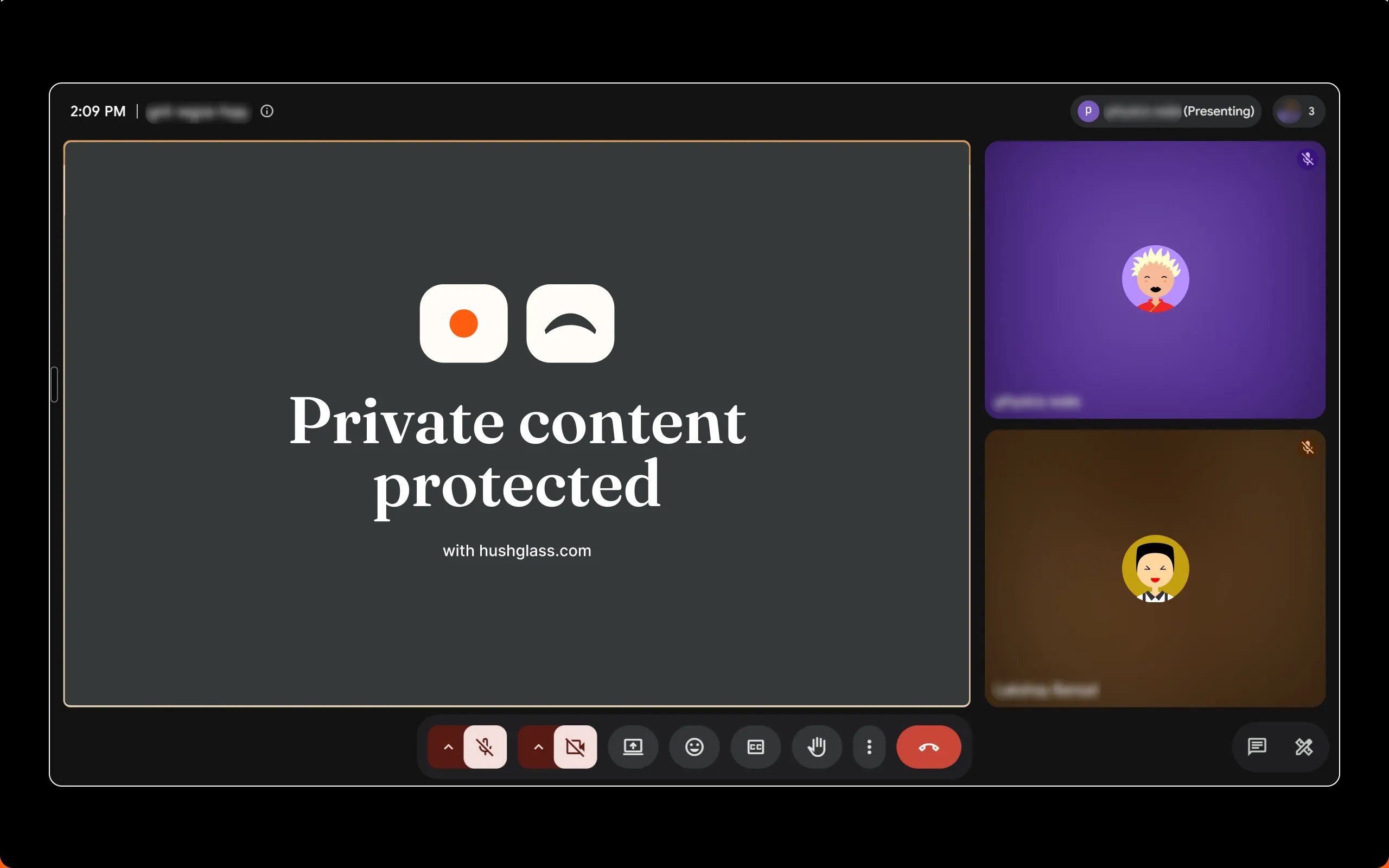
That is the viewer’s half of the divergence, on a real call. The presenter was reading the window underneath it the whole time.
The costs are equally real:
- Whole windows only. No blurring one chat and not another.
- Windows 10 version 2004 or later. The capture flag does not exist before that, and has no macOS or Linux equivalent.
- You have to share your entire screen, not the WhatsApp window itself — sharing that window hands its own pixels straight to the meeting app, and nothing can intervene.
- It is paid beyond one protected window. The extensions are free.
Which to use
Honestly, on the merits:
Use a blur extension if you only care about WhatsApp Web, you want per-element control, you are on macOS or Linux, you are happy toggling it, or you want something free and auditable.
Use window protection if you need to keep reading and replying while you present, you use the WhatsApp desktop app, you want the same mechanism to cover other windows too — banking, another client’s document, your notes — or the moments you need it are unplanned and you want a keyboard shortcut rather than a settings panel.
Use both if you want fine-grained blurring day to day and viewer-only protection during calls. They do not conflict.
The part neither one fixes
Whatever you choose, two things stay true on Windows and are worth knowing before a call rather than after one.
Notification banners are separate windows. Neither an extension nor window protection covers a WhatsApp banner sliding into the corner, because it is not part of the page or the window. Turn on Do not disturb (Windows 11) or Focus assist set to Alarms only (Windows 10).
Task View and Alt-Tab draw their own thumbnails. Windows renders those previews itself, and a protected window that is open on your screen shows its real content there. Minimised, it shows its app icon instead. Do not open Task View while presenting.
Check whichever you pick
The same test settles it in about a minute, and it is the only one that counts:
- Start a meeting alone and join from your phone.
- Turn on whichever protection you chose, then share your entire screen.
- Look at the phone. Not at the meeting app’s preview on your PC, and not at a screenshot of your own desktop — both are produced by the machine that already knows the answer you are hoping for.
If you want the window-protection route, the step-by-step is in how to hide WhatsApp from a screen share. Hushglass is free for one protected window, on Windows 10 version 2004 or later.
Frequently asked questions
Are WhatsApp blur extensions safe to install?
That is a question to ask of each one rather than the category. Any extension that blurs WhatsApp Web needs permission to read and change data on that page, which is the same access needed to read your messages. Most are honest; the permission is unavoidable for the feature. Check the developer, the review count and how recently it was updated, and prefer ones that state plainly that nothing leaves your browser.
Can an extension blur the WhatsApp desktop app?
No. A browser extension can only act on pages inside that browser, so it reaches WhatsApp Web and nothing else. The desktop app is a separate program and no extension can see it.
Do these extensions work on Mac or Linux?
Yes, and that is a genuine advantage over window protection. A Chrome or Edge extension runs wherever the browser runs. Window protection as described here relies on a Windows capture flag and is Windows only.
Can I use both at once?
Yes, and for some people that is the right answer. Use an extension for fine-grained blurring inside WhatsApp Web when you are not in a call, and window protection when you are sharing your screen and want to keep reading normally.
Does blurring stop a screenshot or a recording?
Only in the sense that it blurs the page for everyone including you, so a screenshot captures the blurred state. That is real protection, but it is protection by degrading what is on your own screen, which is the trade-off this whole page is about.