

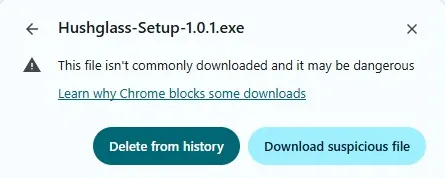
If Chrome told you a download was suspicious, the most likely explanation is not that the file is dangerous. It is that not enough people have downloaded it. Chrome’s own expanded warning says so, in words most people never read because the first thing they see is the word blocked:
This file isn’t commonly downloaded and it may be dangerous.
“Isn’t commonly downloaded” is the finding. “May be dangerous” is the inference drawn from it. Those are very different statements, and the gap between them is where every small software maker lives.
We publish an unsigned Windows app and hit this ourselves, so this page is written from the inside. It is not an argument that you should ignore the warning. It is the information you need to check a file rather than guess about it.
Two different systems, constantly confused
Almost every confusing thing about download warnings comes from mixing these up.
Detection asks: does this file look like malware? An antivirus engine examines the bytes and either finds something or does not. If it flags a clean file, that is a false positive, and there is a process for disputing it that actually works.
Reputation asks: do we know this file? Nobody examines anything. The question is whether this exact file has been seen enough times, from enough places, to be considered established. A brand new file has no reputation by definition. It cannot fail this check on merit, because there is no merit being assessed.
Chrome’s “suspicious download” bubble is reputation. So is Windows SmartScreen’s “Windows protected your PC”. Neither is telling you a scanner found something.
The practical consequence catches people out: an app can be cleared by every antivirus engine and still get blocked by the browser, because clearing detection does nothing for reputation. They are separate systems that happen to produce similar-looking dialogs.
Why reputation is nearly impossible for a small maker to earn
Reputation attaches to the exact file, identified by its hash. Change one byte and it is a different file with no history.
That means every release starts from zero. Version 1.0.1 earns some trust over weeks, you fix a bug, and 1.0.2 is a stranger again. A maker shipping updates regularly may never accumulate enough downloads of any single build to clear the threshold.
The intended escape is a code signing certificate, which moves reputation from the file to the publisher, so it carries across releases. It costs a few hundred dollars a year, and the cheaper kind still needs its own reputation build-up before warnings stop. For a project that has not made its first sale, this is circular: the certificate would help sell the thing that pays for the certificate.
Why installers get flagged more than plain programs
A quirk worth knowing if you compare scan results between an app and its installer.
Installers built with common tools compress their payload and append it after the executable’s normal structure. Malware droppers do something structurally similar — carrying a hidden payload to unpack and run. A scanner reading shape rather than intent sees the same silhouette.
So a perfectly ordinary installer can score worse than the program inside it, for a reason that has nothing to do with what either one does.
What a false-positive dispute actually achieves
It is worth knowing this works, because most people assume it does not.
We submitted both of our files to Microsoft Security Intelligence as incorrectly detected. Both came back cleared, with the same wording:
At this time, the submitted files do not meet our criteria for malware or potentially unwanted applications. The detection has been removed.
Two things we learned that are not documented anywhere obvious:
- No verdict email ever arrived, for either submission, despite the portal saying one would. The submission status page is the real source.
- The portal’s own Status field lagged the decision. One submission still displayed In progress while the analyst comments directly below it already carried the verdict. Read the comments, not the status.
And the limit of it: clearing detection removed a malware verdict. It changed nothing about the browser download warning, because that was always reputation. We expected this and it is still worth stating, because “we got cleared by Microsoft” sounds like it should fix the download and does not.
The warnings are not even consistent
On the one first-time install we have watched end to end, on a machine that was not ours, Chrome blocked the download outright — and then Windows showed nothing at all when the installer ran. No SmartScreen prompt.
That is the opposite of what every guide predicts. The same file genuinely produces different verdicts on different machines, on different days, and through different browsers, because reputation data is regional, time-varying and vendor-specific. If someone tells you exactly which warning you will see, they are describing their machine, not yours.
What the buttons actually mean
Before the checking, the dialogs themselves, because both are written in a way that hides the choice.
Chrome’s download bubble. The collapsed form says only “Suspicious download blocked”, with a chevron. Most people never expand it, and an unexpanded bubble leaves you with no file and no explanation. Expanding it gives the real message and two buttons: Delete from history, styled as the primary action, and Download suspicious file, styled as the secondary. Note what that wording does — the only path forward requires you to affirm you are doing something dangerous, and the safe-looking button is the one that discards the file. Neither button is a verdict about the file. They record your decision, nothing more.
Windows SmartScreen, if it appears, says “Windows protected your PC” with a single Don’t
run button. The way through is the More info link, which is easy to miss because it does not
look like a control; it reveals the file name, the publisher as Unknown publisher, and a Run
anyway button.
Knowing the labels in advance is most of the battle. The rest is doing the checking below before you press anything.
How to actually check a file
This is the part worth keeping, whatever you are downloading and whoever made it.
1. Confirm the file is the one the publisher put up. A maker who publishes their file’s SHA-256 is giving you something to test them against. Open PowerShell in the folder holding the download and run:
Get-FileHash .\TheFile.exe
That prints an Algorithm, a Hash and a Path. The hash is 64 hexadecimal characters. Compare it
to the value on the publisher’s page — the whole string, not the first few characters, since matching
only the beginning is exactly what someone forging a comparison would rely on.
To avoid comparing by eye, paste their value in and let the computer answer:
(Get-FileHash .\TheFile.exe).Hash -eq 'PASTE_THE_PUBLISHED_HASH_HERE'
True means the file you have is byte-for-byte the file they published: no tampering in transit, no
substituted download, no truncated transfer. False means stop and download it again before
anything else. If a site offers a download and no checksum at all, that is a small mark against it.
2. Check the file size too, if they publish one. It is a weaker check than a hash and it takes a second:
(Get-Item .\TheFile.exe).Length
3. Scan the file yourself before running it. Upload it to VirusTotal, which runs it past around seventy engines at once, and read the result properly rather than counting:
- Which engines flagged it matters far more than how many. A handful of enterprise behavioural engines with no named malware family is a very different signal from Microsoft, Kaspersky or ESET naming a specific trojan.
- A detection with no family name — “Malicious”, “Suspicious”, a confidence percentage — is a machine-learning guess. A named family is a match against something known.
- Names containing
!mlare explicitly machine-learning verdicts. - Check the analysis date and press Reanalyze if it is old. A stale report can predate a correction in either direction.
4. Ask where the file came from. A checksum proves the file was not altered. It says nothing about whether the publisher deserves trust. Look for a real site, a stated identity, a support address that works, a refund policy, and a version history that shows somebody is still there.
5. If it still looks wrong, do not run it. Nothing above is a reason to override your judgement. A warning you cannot resolve is a good reason to walk away, and no legitimate maker should ask you to do otherwise.
Where we stand on our own file
Hushglass, a Windows app that protects a chosen window from screen-share viewers only, ships two ways. The installer is not code signed yet, so from it you should expect a browser warning, and possibly a Windows one. The same app is also on the Microsoft Store, free, and a Store install is signed by Microsoft: no browser warning, no Windows prompt, nothing to click through. If everything above sounds like more than you want to deal with, that is the route.
Our download page puts the two side by side, publishes the installer’s SHA-256 and exact byte count, shows the real warnings you will encounter with screenshots of each, and says plainly what is and is not verified. Signing the installer is planned, gated on revenue rather than on intent.
Check the hash. That is the part that is actually evidence.
Frequently asked questions
Does a matching checksum mean a file is safe?
No, and this is the most common misreading of it. A checksum proves only that the file you received is byte-for-byte the file the publisher put up — no tampering in transit, no substituted download. It says nothing about whether the publisher deserves your trust. It answers "is this the right file", not "is this a good file".
Is it safe to click "Download suspicious file"?
That button is not a verdict about the file, in either direction — it only records that you chose to proceed past a reputation check. Whether it is safe depends on the file, so do the checking first: confirm the publisher's SHA-256 matches, scan it yourself, and look at who published it. If you cannot resolve the warning, do not proceed. There is no shame in walking away from a download.
Why not just buy a code signing certificate?
Cost and timing. A certificate is a few hundred dollars a year, and the cheaper kind still has to build its own reputation before warnings stop, so it is not an instant fix. For a product that has not made its first sale it is circular — the certificate would help sell the thing that pays for the certificate. It is planned, gated on revenue rather than on intent. In the meantime the same app is on the Microsoft Store, where Microsoft signs it, so that route has no warning in it at all.
Will Windows Defender delete the file?
It should not. Both Hushglass binaries were submitted to Microsoft as incorrectly detected and both came back cleared, with the detection removed. If a machine flagged one before that clearance it may still hold a cached verdict locally, which a signature update resolves. A browser warning is a separate system and is not affected by any of this.